Resolve an entity, preview how often an alert would fire, create it, and update or pause it later — from the dashboard or the API.
You can create an alert two ways: point-and-click in the platform dashboard, or programmatically through the API. Both produce the same resource and both are covered below.
Plan — Alerts require a Team, Business, or Enterprise plan. On a plan that doesn’t include them, the create call returns plan_does_not_support_alerts.
API key — Alerts CRUD works with a standard X-API-Key. Create one on the API keys page. Your key is bound to a project, and the create endpoint is project-scoped — pass that same project’s ID in the path.
A notification email — Matches are delivered by email to a verified address. Auto-verification works for dashboard users; API-key callers must use an address that’s already verified for the organization. See Notification emails.
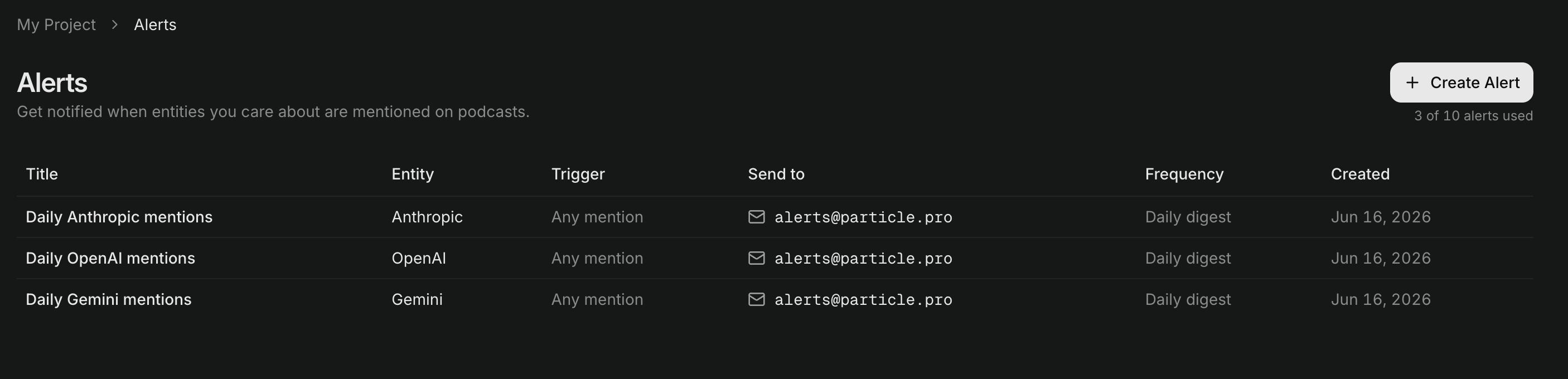
Go to Alerts in the project sidebar and click Create Alert.
The Alerts list. The counter top-right shows alerts used against your plan's allowance.
2
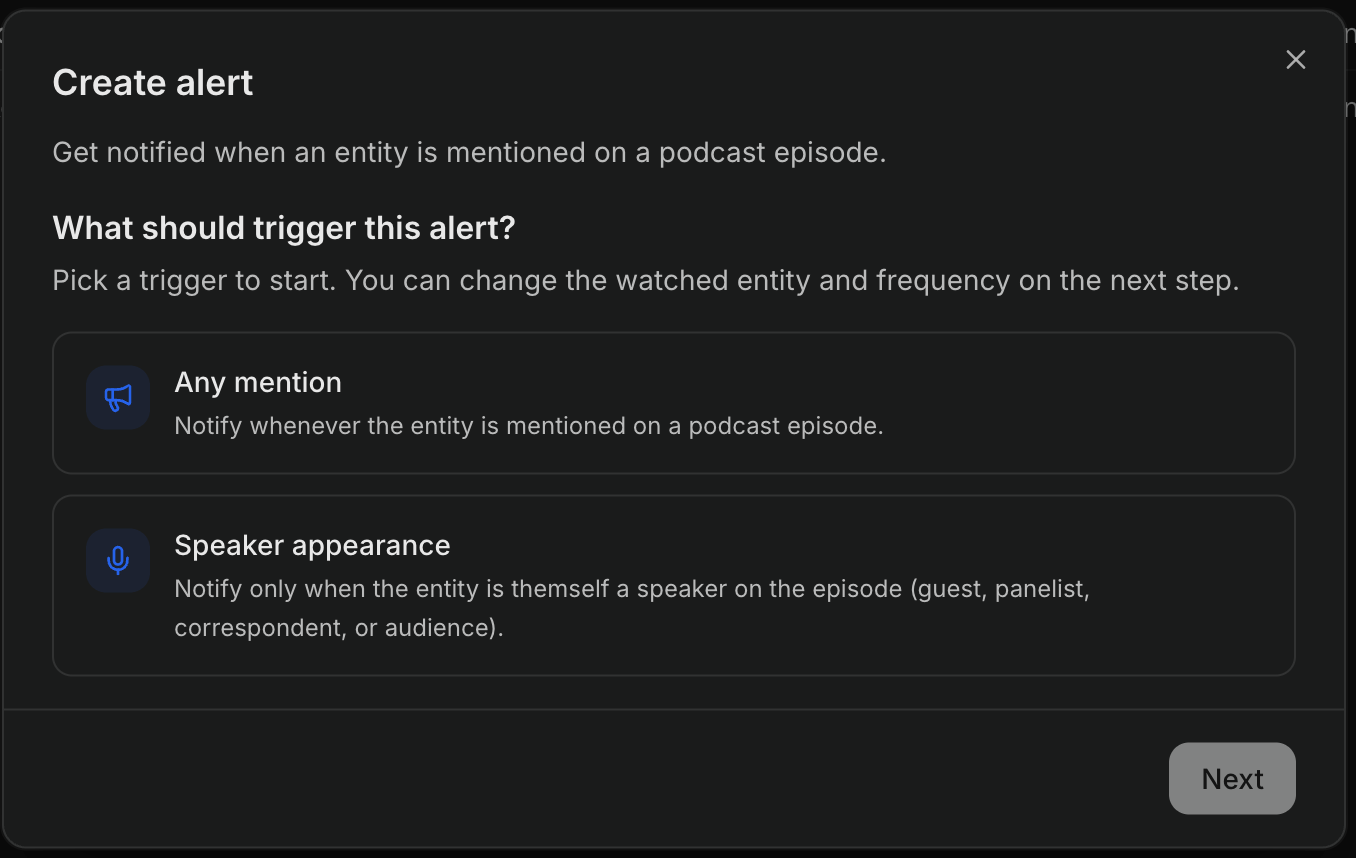
Choose what triggers the alert
Pick Any mention — notify whenever the entity is mentioned — or Speaker appearance — notify only when the entity is themself a speaker on the episode (guest, panelist, correspondent, or audience, or in an excerpted soundbite of them). The trigger is fixed once the alert is created.
Step 1: pick the trigger.
3
Pick the entity and delivery frequency
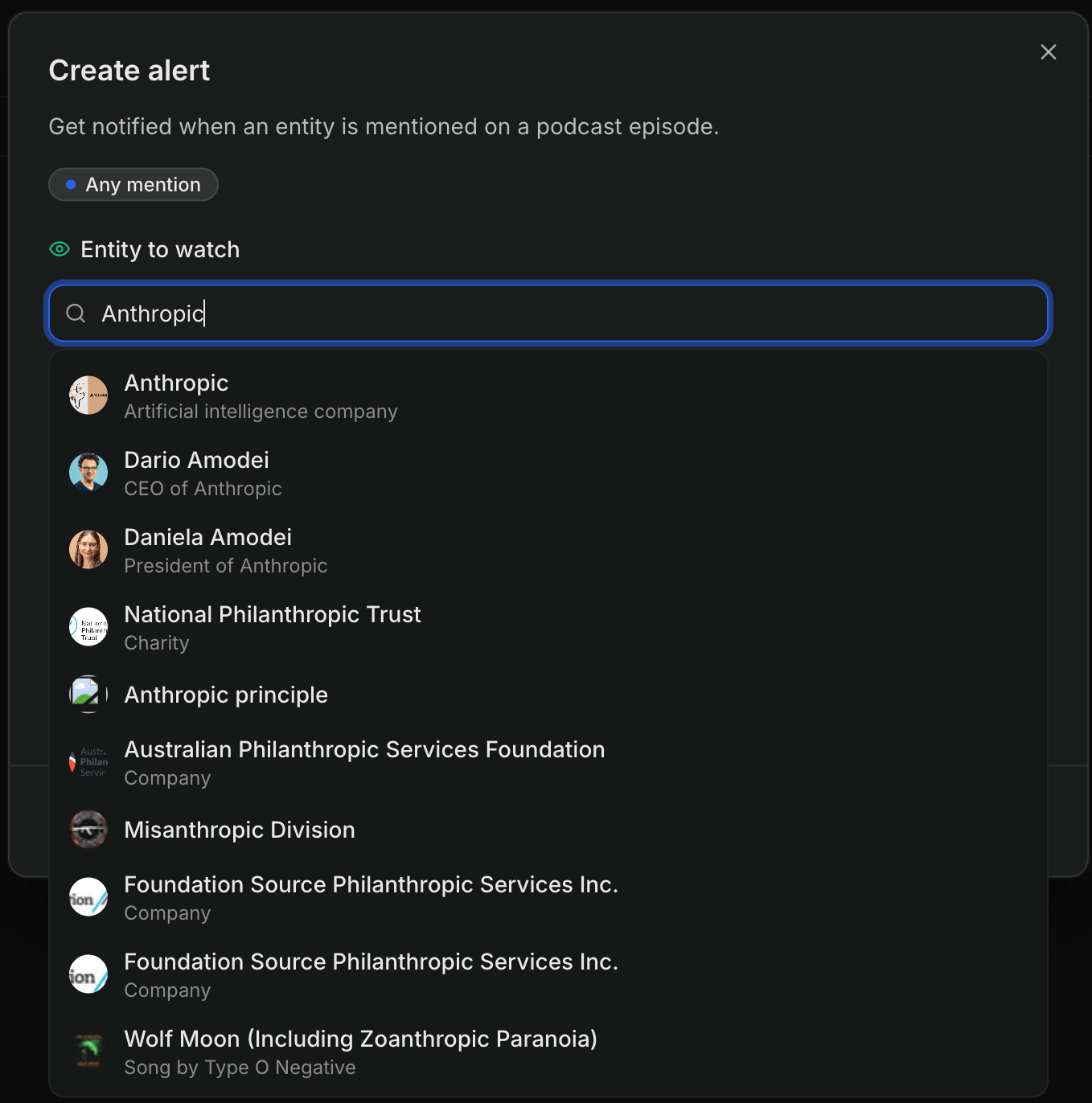
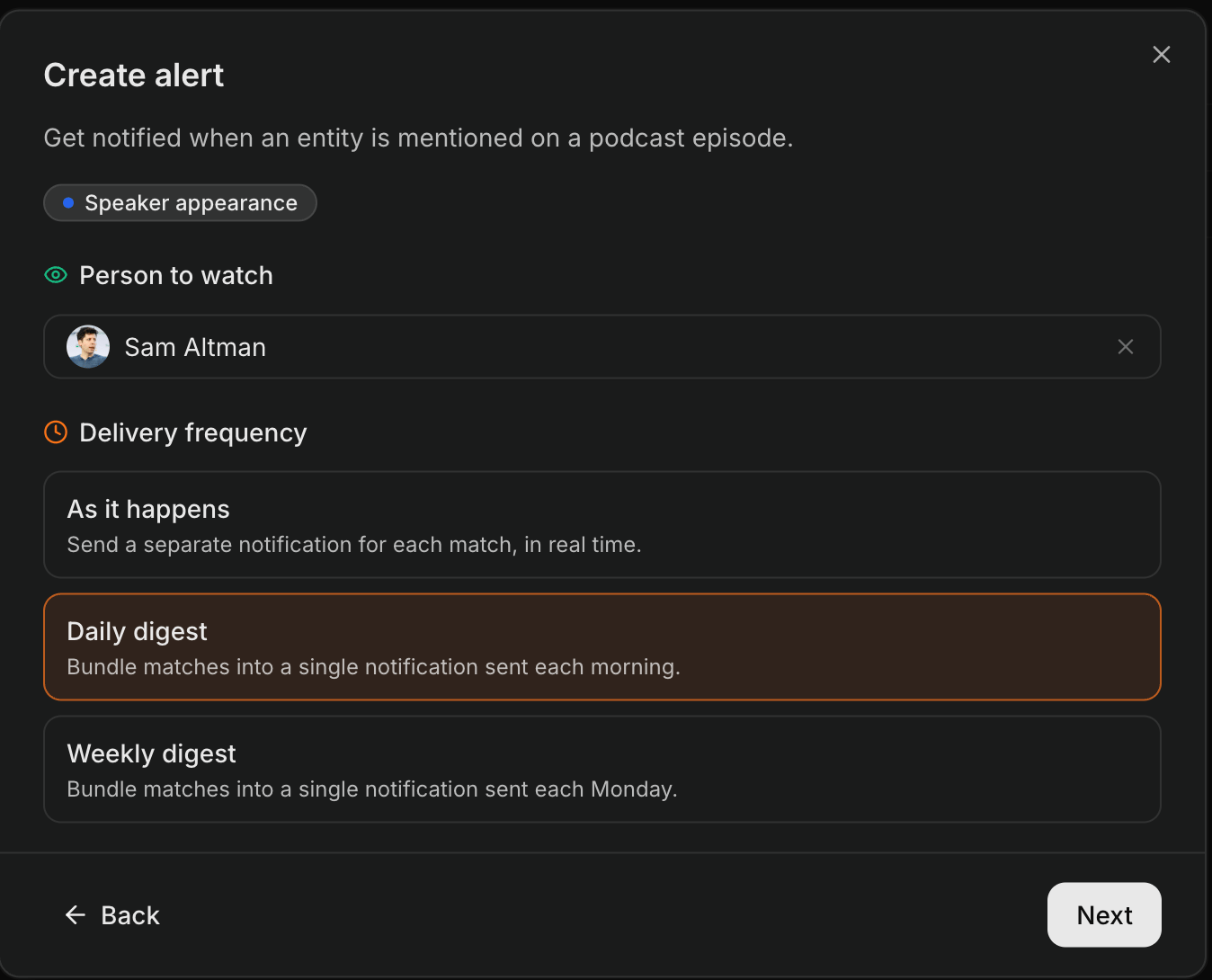
Search for the entity to watch — the field is labelled Person to watch for a speaker-appearance alert — and choose a Delivery frequency: As it happens, Daily digest, or Weekly digest.
Any mention: search the knowledge graph for the entity to watch.
Speaker appearance: a person to watch, set to a daily digest.
4
Name it and set the recipient
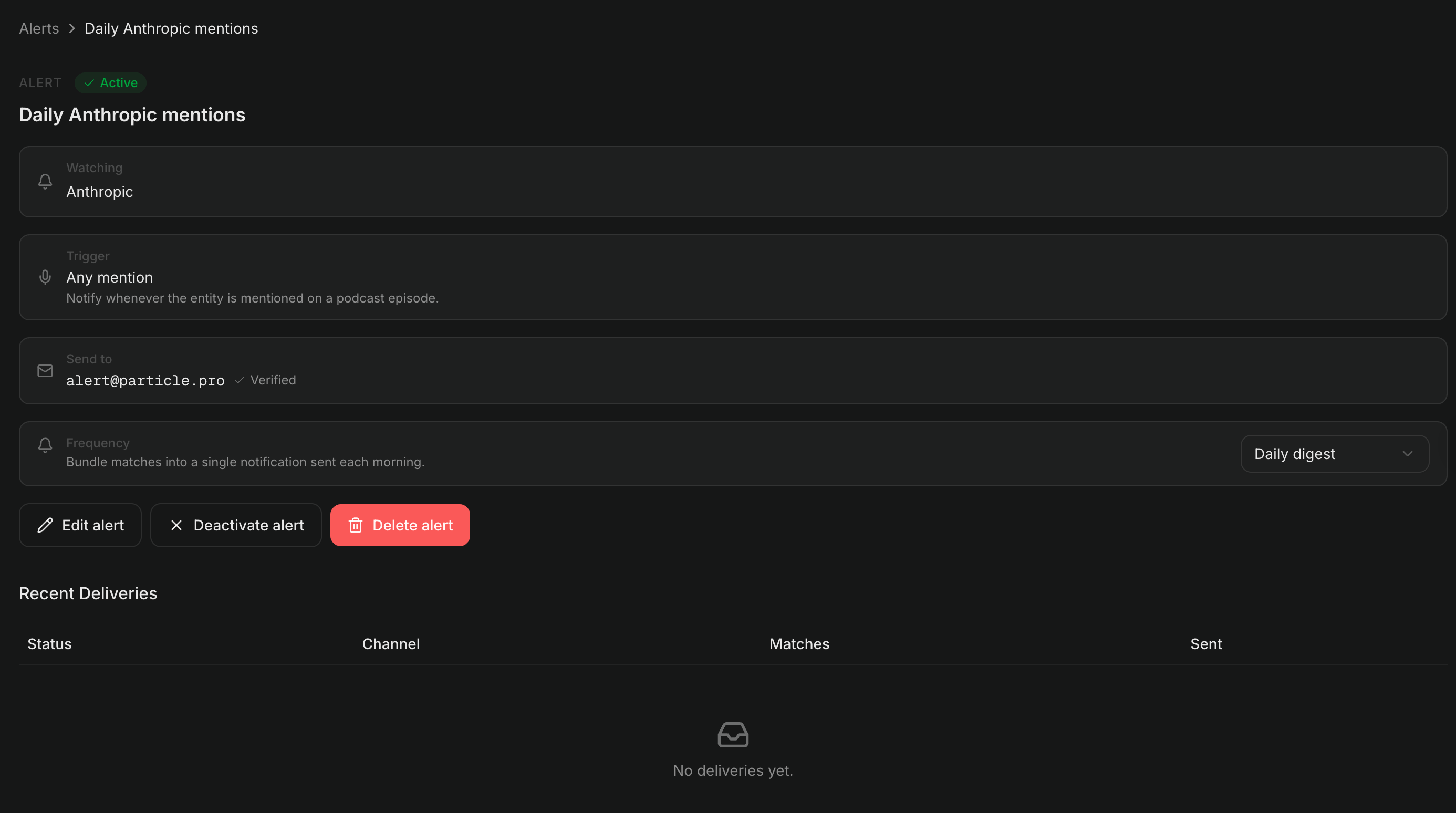
Give the alert a Title and a Send to email address, then create it. The alert’s detail page shows its configuration, an Active/paused badge, and a recent-deliveries log.
An alert's detail page, with edit, deactivate, and delete actions and the deliveries log.
An alert watches entities by canonical ID, not by name. Resolve the entity first, then use its id as the entity_id. entity_type is one of PERSON, COMPANY, or KNOWLEDGE_GRAPH_ENTITY:
the entity’s id (people, organizations, places, and topics in the knowledge graph)
PERSON
a Particle person record, e.g. a resolved podcast guest
the person’s id
# Resolve a companycurl "https://api.particle.pro/v1/companies/nvidia" \ -H "X-API-Key: $PARTICLE_API_KEY"# → "id": "3CensCwu5G2oKCFgPrNf89"# Resolve a knowledge-graph entity (a person, here)curl "https://api.particle.pro/v1/entities/sam-altman" \ -H "X-API-Key: $PARTICLE_API_KEY"# → "id": "17PzxG1t12xzno"
# Resolve a companyparticle company nvidia# → "id": "3CensCwu5G2oKCFgPrNf89"# Resolve a knowledge-graph entity (a person, here)particle entity sam-altman# → "id": "17PzxG1t12xzno"
Use the canonical id, not the slug. For PERSON and COMPANY, entity_id must decode to a valid UUID — a slug like nvidia is rejected with a 422. A well-formed id that doesn’t match a real entity is accepted, but the alert is created without the enriched name/image_url and won’t match anything, so confirm the ID resolves first.
Before you commit, run a preview to see how often the alert would have fired over the past window_days days (default 7, max 30). The sweep is asynchronous, and the POST returns only status fields (preview_id, status, window_days) — never the counts. A fresh sweep returns 202 Accepted with status: "in_progress"; poll GET /v1/alerts/preview/{previewId} until status is terminal (completed or failed), then read total_matches, by_day, and sample from that GET response. If an identical preview ran within the past hour, the POST returns 200 OK with status: "completed" instead — the result is ready, so a single GET retrieves it without a polling loop.
total_matches is the count over the whole window; by_day is the per-day histogram (empty days included so a chart has no gaps); sample is the few most-recent matches with full payload so you can show “here’s what it would have caught.” Preview IDs are deterministic — repeating the same body within the hour returns the same preview_id and a cached result, so polling is cheap.If the sweep errors, the same endpoint returns status: "failed" with a human-readable error string instead of counts — treat failed as terminal alongside completed and stop polling. Previews are retained for one hour; an expired preview_id returns 404.
POST the configuration to the project-scoped endpoint. The body sets the title, kind, delivery cadence, the entity to watch, and one or more email channels. To retry a create that timed out without risking a second alert, send an Idempotency-Key and resend the same key.
The created_by field is omitted here because the request authenticated with an API key; it’s populated with the creating user only for alerts created by a signed-in dashboard user.To alert on a person’s appearances rather than mentions, set kind to PODCAST_SPEAKER and watch a person entity — either a PERSON record or the person’s knowledge-graph entity. This fires only when the person is an identified speaker on the episode — by default a guest, panelist, correspondent, or audience member, or in an excerpted soundbite (SOUNDBITE_SPEAKER) — not when they’re merely talked about. speaker_roles replaces that default set.
To alert on a keyword instead of an entity, set kind to KEYWORD_MENTION and send keyword in place of entities. Use it when the name you care about has no entity to resolve, or its entity has no podcast coverage — a startup whose brand differs from its legal name, a product, a drug, or a code name. The phrase matches the way a double-quoted phrase in keyword search does — its words adjacent and in order — in topic-discussion and interview segments only. Set description to say what the phrase means: it is how the relevance check drops mentions of an unrelated thing with the same name, such as the physics term “light field” for an alert on the Lightfield CRM.
Preview a keyword first with the same body on the preview endpoint. A phrase that matched more than 700 podcast episodes in the past week is too broad to alert on: create, edit, and preview all reject it with a 422 asking for a more specific phrase.A few rules worth knowing:
kind is fixed at creation. Switching between kinds later would invalidate the match history, so create a new alert instead. A keyword alert’s keyword can be edited with PATCH; matches already recorded keep the phrase they fired on.
delivery_cadence defaults to REALTIME. Use DAILY or WEEKLY for bundled digest emails — see Delivery frequency.
is_active defaults to true. Pass false to create the alert paused: it won’t match new episodes or send email going forward, and it doesn’t count against your plan’s allowance until enabled. The one-time creation backfill still runs, so a paused alert can still show up to 7 days of historical (backfilled) matches.
A new alert is backfilled. Right after creation — even if you create it paused — Particle sweeps the past 7 days so the alert isn’t empty. Backfilled matches never send email — see Alert results → Backfill.
filters is optional. Omit to surface every detected match. Set any of languages, relevance, source_popularity, or speaker_roles to narrow what’s delivered — the same filter shape applies on PATCH /v1/alerts/{id}. See Filtering matches for the full spec.
A second example shows the four filter axes in action — an English-language PODCAST_SPEAKER alert that fires only when Sam Altman appears as a guest on a top-5% show:
particle alert create sam-altman \
  --speaker \
  --role guest \
  --language en \
  --relevant \
  --popular \
  --email you@example.com \
  --title 'Sam Altman — guest spots on top podcasts'
Each axis defaults to “no filter”, so you only need the ones that narrow the way you want — sending { "source_popularity": "POPULAR" } alone is a complete filter set. On PATCH /v1/alerts/{id}, omitting filters leaves the existing filter set unchanged; pass "filters": {} to clear all four axes back to their defaults.
Email isn’t the only destination. Add a SLACK channel to post matches to a Slack channel ({ "type": "SLACK", "slack_connection_id": "…", "slack_channel_id": "…" }), or a WEBHOOK channel to POST them to your own service ({ "type": "WEBHOOK", "webhook_connection_id": "…" }). See Slack and Webhooks for setup.
Every email channel must be verified for your organization before it receives mail. What gets verified automatically depends on how you authenticate:
Dashboard / logged-in users — your own address and any address belonging to a member of your organization are verified automatically the first time you use them.
API-key callers — an API key carries no user identity, so nothing is auto-verified. The address must already be verified for the organization (verify it once from the dashboard, or through the verification-link flow); otherwise the create or update call returns email_verification_required.
Any third-party address must confirm a one-time verification link before it receives mail.
Deleting a verified notification email that is still referenced by an alert returns notification_email_in_use — remove it from the alert’s notifications first.
PATCH /v1/alerts/{id} applies a partial update. Only the fields you send change — but entities and notifications, when present, replace the whole set (they aren’t merged).
# Pause an alert without losing its historycurl -X PATCH "https://api.particle.pro/v1/alerts/8Qw2mRk7Tf9LpZ" \ -H "X-API-Key: $PARTICLE_API_KEY" \ -H "Content-Type: application/json" \ -d '{ "is_active": false }'
# Pause an alert without losing its historyparticle alert update 8Qw2mRk7Tf9LpZ --no-is-active
# Delete it (soft delete — existing matches and deliveries are retained for audit)curl -X DELETE "https://api.particle.pro/v1/alerts/8Qw2mRk7Tf9LpZ" \ -H "X-API-Key: $PARTICLE_API_KEY"
# Delete it (soft delete — existing matches and deliveries are retained for audit)particle alert delete 8Qw2mRk7Tf9LpZ
Recipients can also turn an alert off without an account: every alert email has a Disable this alert link in its footer that flips the alert to inactive in one click. See Alert results → Stop delivery.
Malformed entity_id (e.g. a slug where a canonical PERSON/COMPANY ID is required), unknown kind, a watch target that doesn’t match the kind (keyword on an entity alert, entities on a keyword alert, or neither), or an EMAIL channel with no address.